
Create your first campaign
A campaign houses all the settings for your deadline offer, including when the deadline ends, which pages it runs on, and the countdown timers for your pages and emails. In this short step-by-step guide, we will walk you through setting up a campaign from start to finish.
Before you start, have these ready:
- The web address of your offer page, plus your checkout page if it's a separate page.
- A way to add code to the
<head>of those pages. Most page builders have a "header code" or "tracking code" setting for this. - If you're sending people by email, access to your email platform.
1Choose the campaign type
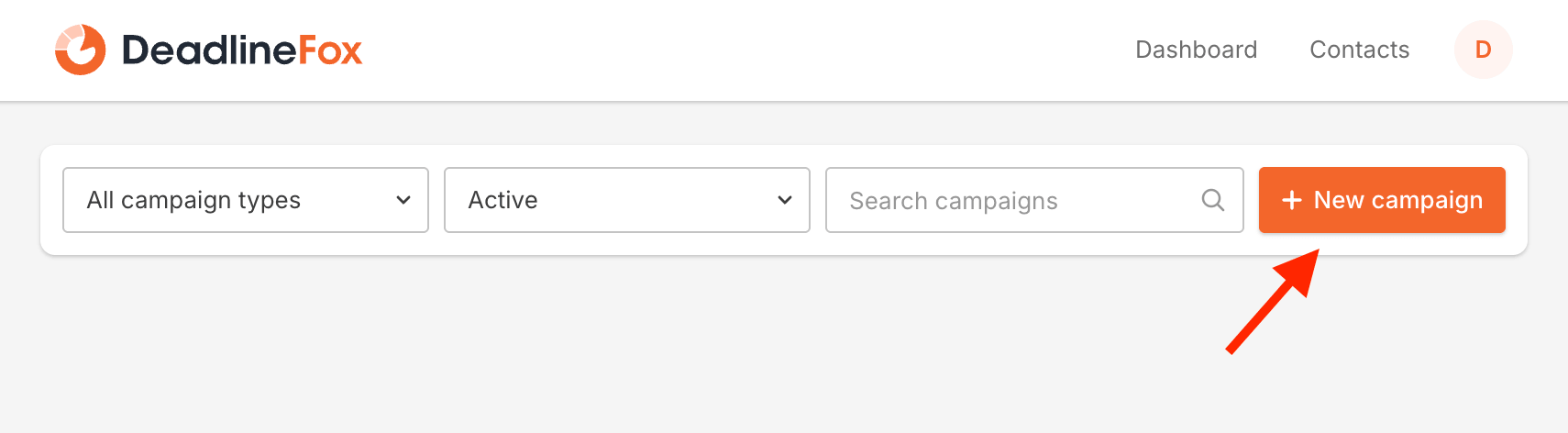
From your dashboard, click New campaign. If this is your first campaign, the button in the middle of the page reads Create a new campaign.
You'll be asked what type of campaign you want. This is the most important choice, because it decides who gets which deadline:
| Type | Who gets the deadline | Use it for |
|---|---|---|
| Fixed date campaign | Everyone shares one deadline, on a date and time you pick. | Launches, flash sales, and anything with a real end date. |
| Evergreen campaign then Email campaign |
Each person gets their own deadline, starting when they first open your email or click your link. | Email sequences and automations that run all year. |
| Evergreen campaign then Webpage campaign |
Each person gets their own deadline, starting when they first visit through your campaign link. | Traffic that doesn't come from email, such as ads or social posts. |
Pick Fixed date campaign or Evergreen campaign. If you chose evergreen, click Continue and choose Email campaign or Webpage campaign. Then click Create campaign.
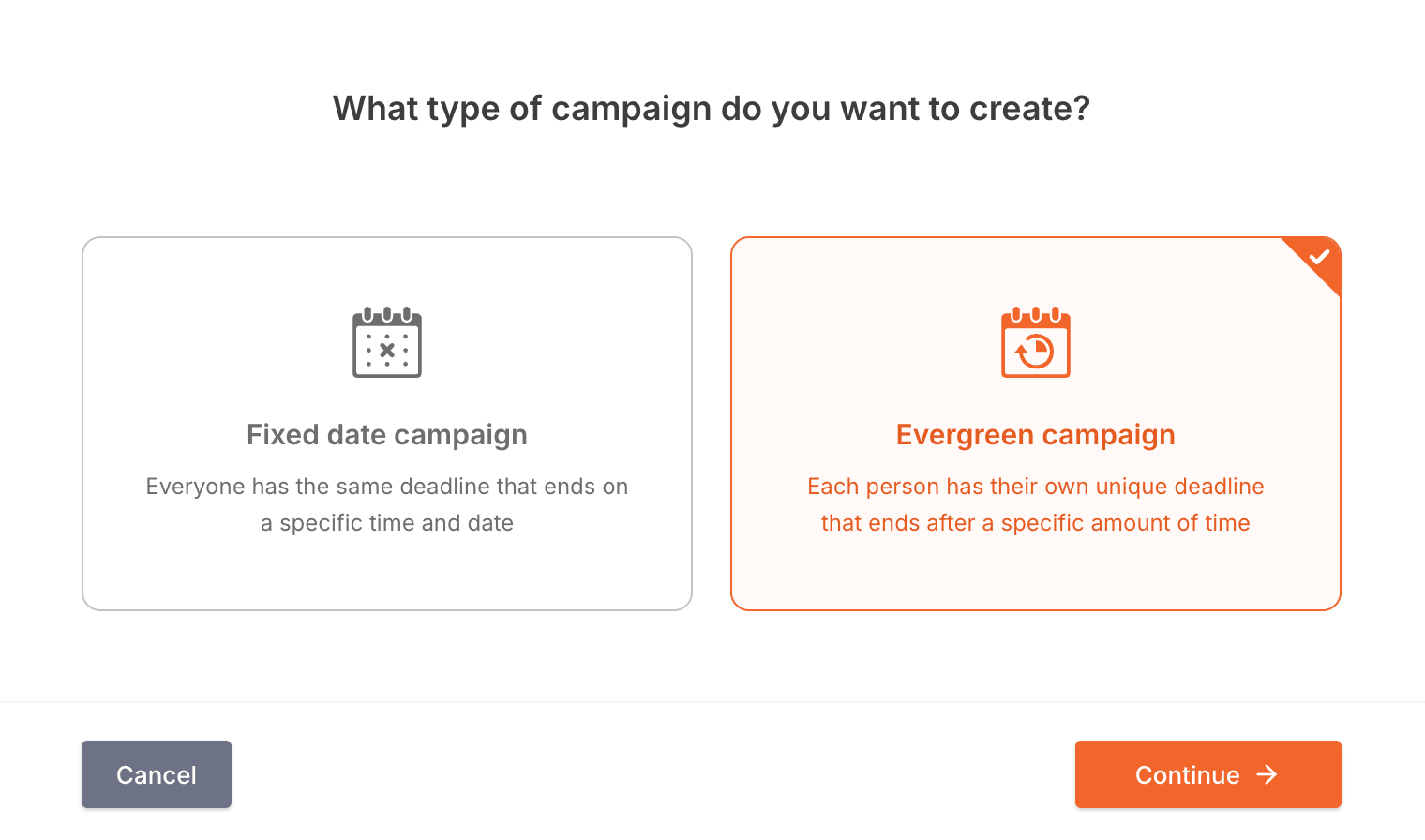
Fixed date campaign
Choose this option if you want to create a deadline that ends at the same date and time for everyone.
Examples
Evergreen campaign
Choose this option if you want to create a deadline offer that runs continuously, where each person gets a unique deadline based on when they enter your campaign.
Examples
In this step-by-step guide, we will be creating an Evergreen campaign. If you want to create a Fixed date campaign, please see our other guide here.
2Set the deadline
The campaign editor opens on the Deadline tab. It has three tabs, Deadline, Pages, and Timers, and you'll go through each one with the Next button.
For an evergreen campaign, choose how each person's deadline ends:
- End after a specific amount of time: the deadline ends a set number of days and hours after it starts. New campaigns start at 7 days. Tick Always end the deadline at a specific time of day if you'd rather it always ends at, say, 8 PM in your timezone instead of the exact minute it started.
- End on a specific day/time of the week: everyone's deadline ends at the next occurrence of a day and time, for example every Friday at 11:59 PM. Turn on Set a minimum cutoff time so someone who arrives an hour before the cutoff is moved to the following week instead of getting a deadline that's almost over.
For a fixed date campaign, pick the date, time, and timezone the offer ends. The editor shows how long is left, so you can check it.
img/first-campaign/03-deadline-tab.webp. The Deadline tab of an evergreen campaign, End after a specific amount of time selected, set to 3 days. Crop above the Flash Pass section.
Pro options on this tab. Second chance deadline extension gives people one extra window after the deadline ends, and Flash Pass offers a short last-chance window to visitors who missed it. You can leave both off for your first campaign and add them later.
Click Next.
3Add your pages
On the Pages tab, under Deadline offer pages, add every page the deadline applies to. Type or paste the full address, starting with https://, and click + Add page.
- Add your checkout page too, if it's a separate page. Otherwise someone could skip the expired sales page by going straight to checkout.
- The easiest way to get the address right is to open the page in your browser and copy it from the address bar.
- A page can only belong to one active campaign at a time. If it's already used by another one, you'll be told which.
img/first-campaign/04-pages-tab.webp. The Pages tab with two pages added (a sales page and a checkout page), plus the Expired action section below them.
Under Expired action, choose what people see once their deadline has passed:
- Show visitors an offer expired page covers the page with a message saying the offer has ended. Click Customize to change its wording and look.
- Redirect to a URL sends them to another page instead, such as a waitlist. This is a Pro feature.
Evergreen campaigns also have a Public page setting. It decides where to send someone who reaches your offer page without a campaign link, for example from a shared link or a search result. By default they get the same treatment as an expired visitor, so the offer is only open to people who came through your campaign.
Click Next.
4Choose your timers
On the Timers tab, turn on the timers you want. You can use any combination:
- Floating page timer: a countdown bar that appears on your campaign pages automatically, with nothing to paste.
- Inline page timer: a countdown you place inside your page content, such as under a headline. Click + Add inline timer and give it a name, such as "Hero section".
- Email timer: a countdown inside your emails. Not available for webpage campaigns.
Each has a Customize button for its style and colors. The defaults look good, so you can come back to this later.
img/first-campaign/05-timers-tab.webp. The Timers tab with Floating page timer and Email timer turned on, showing their Customize and Display rules buttons.
5Save and name it
Click Save. You'll be asked to give the campaign a name, which is only shown to you on your dashboard. Type a name and click Save.
There's no draft mode. A campaign is live as soon as it's saved. Nobody sees a timer until the script is on your pages and people arrive through your campaign, so you have time to finish the next steps.
6Install the script
After saving, DeadlineFox checks each of your pages for its script. If it finds it on all of them, you go straight to the next step.
If it doesn't, you'll see Add our script to your pages, with a tick or a cross next to each page. To fix it:
- Click Copy next to the script.
- Paste it into the
<head>of your pages, as high up as possible. In most page builders, that's the page or site setting called "header code", "head code", or "tracking code". - Publish or update the page, then click Check again.
img/first-campaign/06-script-check.webp. The Add our script to your pages screen with one page ticked and one crossed, and the script box with its Copy button.
You only do this once. The script is the same for every campaign in your account. Once it's on a page, every future campaign that uses that page works without adding it again.
Still not detected? Expand Already installed our script but it's not being detected? for a checklist of the usual causes, or see Installing the embed script. If you'd rather finish this later, click Skip for now.
7Get your links and timer codes
The Let's launch this campaign! page has everything you need to start sending people to your offer.
Select your email platform
For an email campaign, first choose your email platform from the list. Each one fills in the subscriber's details in a different way, so this is what makes your links and email timer work for each person.
img/first-campaign/07-launch-links.webp. The launch page with ActiveCampaign selected and the Campaign links tab open, showing an Email link for row and its Copy button.
Use your campaign links
On the Campaign links tab, copy the link for each page and use it wherever you link to your offer in your emails.
Always use these links, not your normal page address. The campaign link is how DeadlineFox knows who someone is. Someone who arrives through your normal address gets no personal deadline.
A fixed date campaign doesn't need special links, because everyone shares the same deadline. You can keep using your normal page addresses.
Further down the same tab:
- Webhooks is optional. If your email platform can call a webhook from an automation, it can start each person's deadline the moment they enter the automation, instead of when they first open your email or click your link.
- Conversion tracking script goes on your thank you page, so your campaign stats can show who bought and when. Add it now if you can; your timers work without it.
Add your timers
On the Campaign timers tab:
- Floating page timer: nothing to do. It appears on the pages listed.
- Inline page timers: copy each code and paste it into your page where you want that timer to appear.
- Email timer: copy the code and paste it into your email. Use your email editor's HTML or code block, or the HTML view of the email.
Here's what the email timer looks like in an email, with the default style. Each person sees the time left on their own deadline whenever they open the email:
 |
 |
 |
 |
| Days | Hrs | Mins | Sec |
img/first-campaign/08-launch-timers.webp. The Campaign timers tab showing the Floating page timer page list and the Email timer code box.
8Preview and test
Before you send anything, check it works:
- Preview your pages. Click Preview at the bottom of the launch page, or on the campaign's card on your dashboard, then choose a page. A bar at the top lets you switch between each stage of the campaign, including what visitors see after the deadline, without waiting for it to end.
- Send yourself a test email from your email platform, using your campaign link and email timer. Open it, check the timer shows, and click the link. You should land on your offer page with the same deadline as in the email.
img/first-campaign/09-preview.webp. An offer page in preview mode, with the orange preview bar across the top showing the stage buttons and a floating timer at the bottom.
Testing again from the start? Once you've visited through a campaign link, your deadline stays the same, just as it would for a real subscriber, even in another browser, because you're recognized by your email address. To get a fresh deadline, test with a different address (for example you+test2@yourdomain.com), or delete yourself under Contacts in the app and then open your link in a private browser window.
That's it. Your campaign is live, and each person who arrives through your links gets their own deadline.